
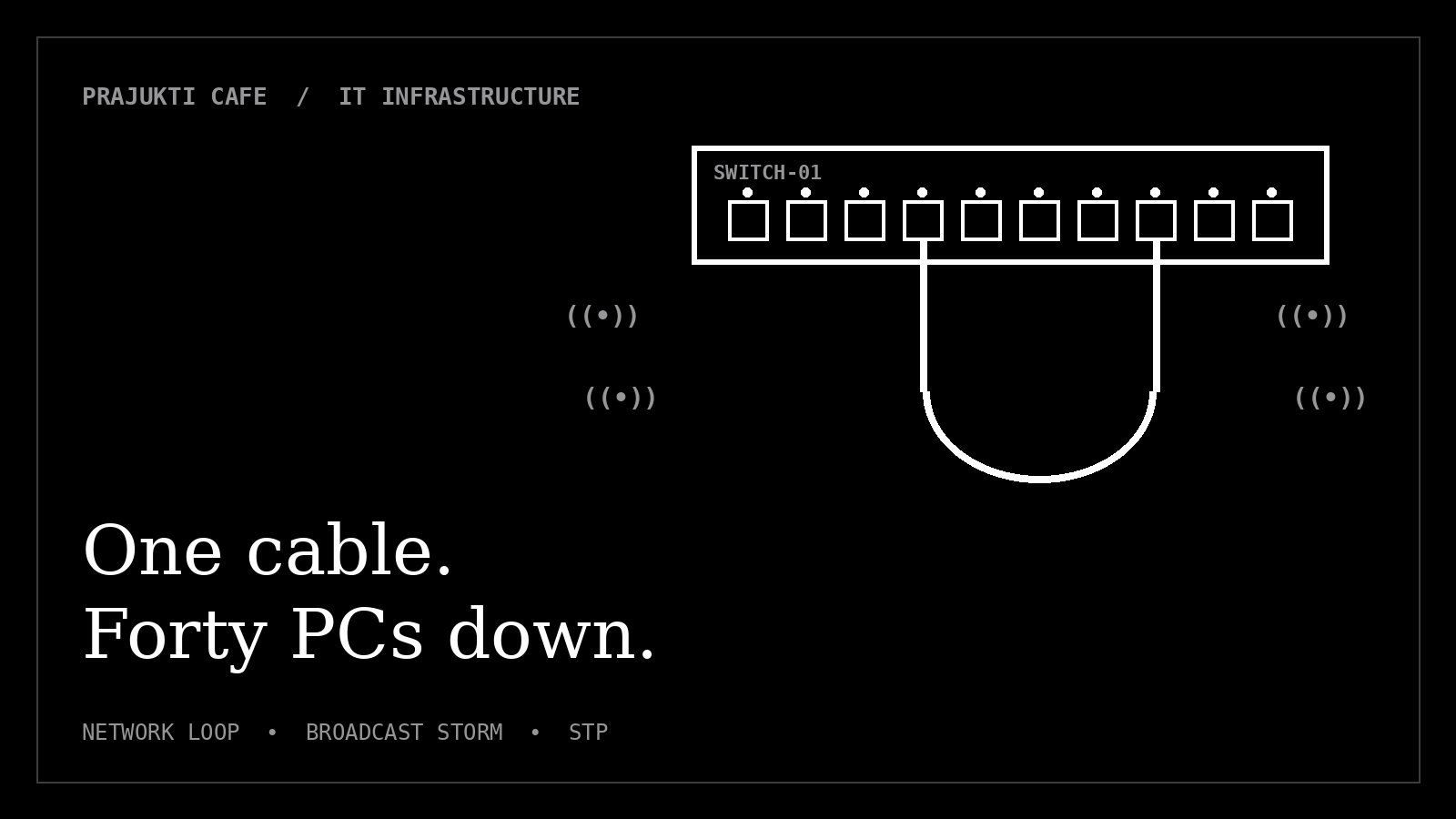
Forty computers stopped working at 10 a.m. The servers were fine. The internet was fine. The culprit was hanging behind a cupboard.
This story is a composite of a kind of incident that network teams everywhere will recognise. The details are typical; the lesson is real.
The morning everything stopped
It started with one complaint: “The internet is slow.” Within ten minutes it was every desk. Email wouldn’t load. The shared drive froze. Printers vanished. Even computers on the same floor couldn’t reach each other.
The IT team checked the obvious suspects. The internet line was up. The servers were running normally. The firewall showed nothing unusual. But in the network cupboard, every light on every switch was blinking furiously, all at the same rhythm.
That synchronised blinking is a classic clue. It usually means one thing: a network loop.
What a network loop is
A network switch connects devices with cables. Normally, there is exactly one path between any two points. A loop happens when a second path accidentally appears, for example when:
- someone plugs both ends of a spare cable into the same switch or the same wall-port box,
- a small desk switch is connected to two different wall ports, or
- two switches get linked twice “for a faster connection”.
In our story, someone had added a small desk switch for an extra printer. While tidying cables, a loose patch cable got plugged from that switch back into a second wall port. Total cost of the cable: about ₹500. Total cost of the morning: an entire office.
Why one loop can stop everything
Some network messages, called broadcasts, are sent to every device at once; computers use them, for example, to find each other. On a normal network, a broadcast goes out once and stops.
In a loop, the broadcast goes round and round. Each switch faithfully copies it and sends it on, so it multiplies with every lap. Unlike internet traffic, these local messages have no built-in expiry, so nothing stops them. Within seconds the network is flooded: switches are overwhelmed, computers struggle to process the flood, and real work traffic can’t get through. Engineers call this a broadcast storm.
Networks rarely fail in dramatic ways. They fail because of one small, undocumented change.
How to find a loop fast
- Look at the switch lights. Every port blinking in unison suggests a loop rather than a broken internet line.
- Check managed switch logs if you have them. Messages about loops, or the same device “moving” rapidly between ports, point to where it is.
- Divide and conquer. Unplug the links to one floor or one area at a time. When the storm stops, the loop is in the part you just disconnected.
- Follow the cables. Look under desks and behind cupboards for small switches and spare cables plugged in twice.
- Remove the extra link, then reconnect the areas one by one and watch the lights return to normal.
The fixes that cost little or nothing
| Fix | What it does | Cost |
|---|---|---|
| Turn on Spanning Tree (STP or RSTP) | Switches detect duplicate paths and block the extra one automatically | Free on managed switches |
| Loop protection / BPDU guard on desk ports | Shuts a port down if someone plugs a loop into it | Free on managed switches |
| Broadcast storm control | Limits how much broadcast traffic a port can carry | Free on managed switches |
| Replace unmanaged desk switches | Many low-cost “smart” switches include loop prevention | Low |
| Label both ends of every cable | Anyone can see what goes where | A label printer |
| Disable unused wall ports | Nobody can plug into what isn’t live | Free |
| Keep a simple network diagram | Faster troubleshooting, fewer surprises | An hour of time |
If you use Cisco switches, these are typical settings for a port where a computer or printer plugs in. Other brands offer the same features in their web interface, usually under names like loop prevention, STP and storm control.
interface GigabitEthernet1/0/10
description Desk port - Accounts PC
switchport mode access
spanning-tree portfast
spanning-tree bpduguard enable
storm-control broadcast level 1.00Test any switch configuration change outside office hours, one switch at a time, and keep a copy of the old settings before you start.
The bigger lesson: single points of failure
The cable was the trigger, but the real problem was that one small mistake could reach the whole office. Look for other places where one thing can stop everyone:
- One core switch with no spare
- One internet connection with no backup line
- One UPS protecting all the critical equipment
- One person who knows all the admin passwords
- One copy of the network configuration, on one laptop
You don’t have to fix them all at once. Just list them, and tackle the cheapest ones first.
Your one-hour network health check
- Confirm Spanning Tree is enabled on every managed switch.
- Turn on loop protection and storm control on desk-facing ports.
- Walk the office and list every small switch under a desk.
- Label the cables in the network cupboard.
- Draw a one-page diagram of how your switches connect.
- Back up your switch configurations to a safe place.
Good infrastructure isn’t about expensive equipment. It’s about making sure that when someone plugs a ₹500 cable into the wrong port, the network shrugs and carries on.