
Every time you tap “Back up”, your memories travel hundreds of kilometres to a windowless building you’ll never see. Here’s what actually happens to them.
“The cloud” is one of the most successful marketing words ever invented. It sounds soft, weightless and everywhere at once. In reality, your wedding photos, your child’s first steps and that blurry picture of a sunset are sitting on a hard drive in a very real building, owned by a very real company.
That isn’t a bad thing. But understanding it changes how you protect your data.
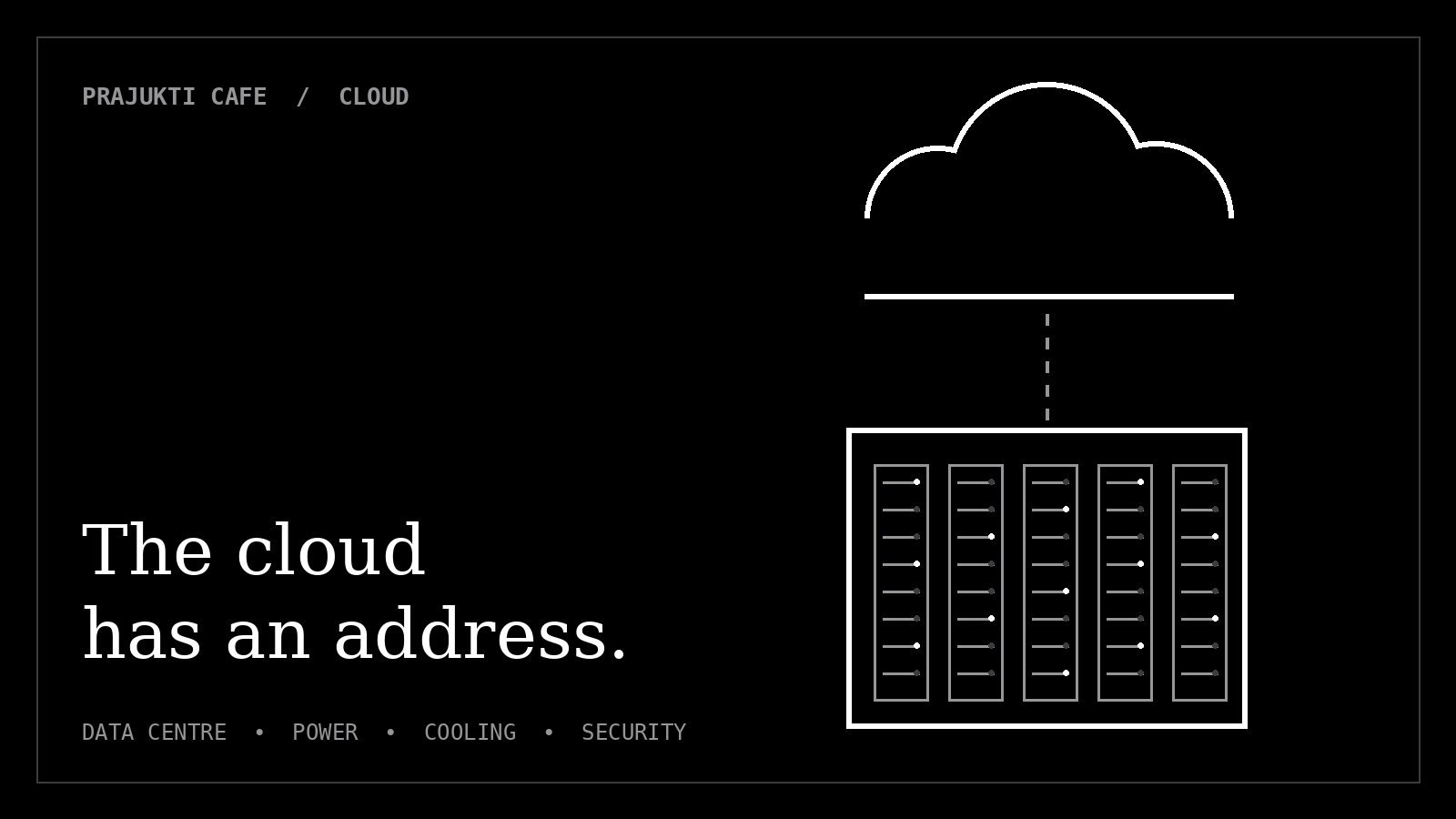
The cloud is a building
Cloud services run in data centres: large, secure buildings packed with thousands of computers called servers. Each one is built to keep running no matter what:
- Power: connections to the grid, banks of batteries and diesel generators in case the grid fails.
- Cooling: industrial air-conditioning, because thousands of servers produce enormous heat.
- Security: fences, guards, cameras, ID checks and locked cages around the machines.
- Network: several fast internet connections from different providers.
The biggest providers run data centres all over the world, and several now operate them in India, in cities such as Mumbai, Hyderabad and Chennai. Where your photos sit depends on the service and its settings, and it may not be in your own country.
The journey of one photo
Here is what happens in the few seconds after you take a picture with backup switched on:
- Your phone waits for a connection, often Wi-Fi only, to save your mobile data.
- The photo travels encrypted over the internet, so anyone in between sees scrambled data, not your picture.
- It arrives at the provider’s data centre and is written to storage drives.
- It is copied to more drives, often in more than one location, so a single broken disk loses nothing.
- It is indexed: dated, sorted and, on many services, scanned so you can search for “beach” or a person’s face.
- When you open your account on a new phone, the copy travels back to you.
Your photo doesn’t float above you. It lives on a disk, in a rack, in a room, in a building with an address.
Why it rarely gets lost, and how it still can
Because providers keep several copies, a photo is very unlikely to vanish because of a hardware failure. The real risks are much more ordinary, and most of them start with us:
| Risk | What happens | How to protect yourself |
|---|---|---|
| You delete it | Sync deletes it from every device and from the cloud | Check the trash or bin folder quickly; deleted items are only kept for a limited time |
| Storage fills up | Backup quietly stops, and new photos stay only on your phone | Check your storage regularly; free up space or upgrade the plan |
| Account is hacked | Someone else can view or delete everything | Use a strong password and 2-step verification |
| You lose access | Forgotten password, old phone number, or a locked account | Keep your recovery phone number and email up to date |
| Backup is switched off | Nothing new is saved, often for months before anyone notices | Open the backup screen once a month to confirm it’s working |
Sync is not backup
This is the single most important idea in this article. Sync keeps the same files identical on all your devices. That’s convenient, until you delete something by mistake: sync faithfully deletes it everywhere.
A true backup is a separate copy that doesn’t change when your phone changes. If your only copy of a photo is “in the cloud” and on your phone, you have one collection in two places, not two independent copies.
If a ransomware attack, a careless tap or a locked account can reach every copy you own, you don’t have a backup. You have a mirror.
Who can see your photos?
Reputable providers encrypt your data while it travels and while it is stored. But in most standard setups, the provider holds the keys, which is how it can show you thumbnails, search your photos and help if you forget your password.
Some services offer an optional end-to-end encryption mode, such as Apple’s Advanced Data Protection for iCloud, where only your devices hold the keys. It’s more private, but if you lose access to your devices and recovery options, nobody can recover your data for you.
For most people, the bigger privacy risk isn’t the provider. It’s a weak password, or a shared album link sent to the wrong group.
The 3-2-1 rule, made simple
IT professionals use a simple rule for anything they can’t afford to lose:
- 3 copies of your data,
- on 2 different types of storage,
- with 1 copy kept somewhere else.
For a family, that can be as simple as: the photos on your phone, a cloud backup, and an external hard drive that you update every month or two and keep in a drawer.
Your 10-minute cloud check-up
- Open your photo app’s backup settings and confirm backup is on and up to date.
- Check how much cloud storage is left, and set a reminder to check again in three months.
- Turn on 2-step verification for the account.
- Update your recovery phone number and email.
- Download a full copy of your photos to an external drive. Most services have an export option; for Google accounts it’s called Google Takeout.
The cloud is a brilliant invention. Just remember it’s a building, run by a company, reached through your password. Treat it as one good copy, not the only one, and your memories will outlast every phone you’ll ever own.