
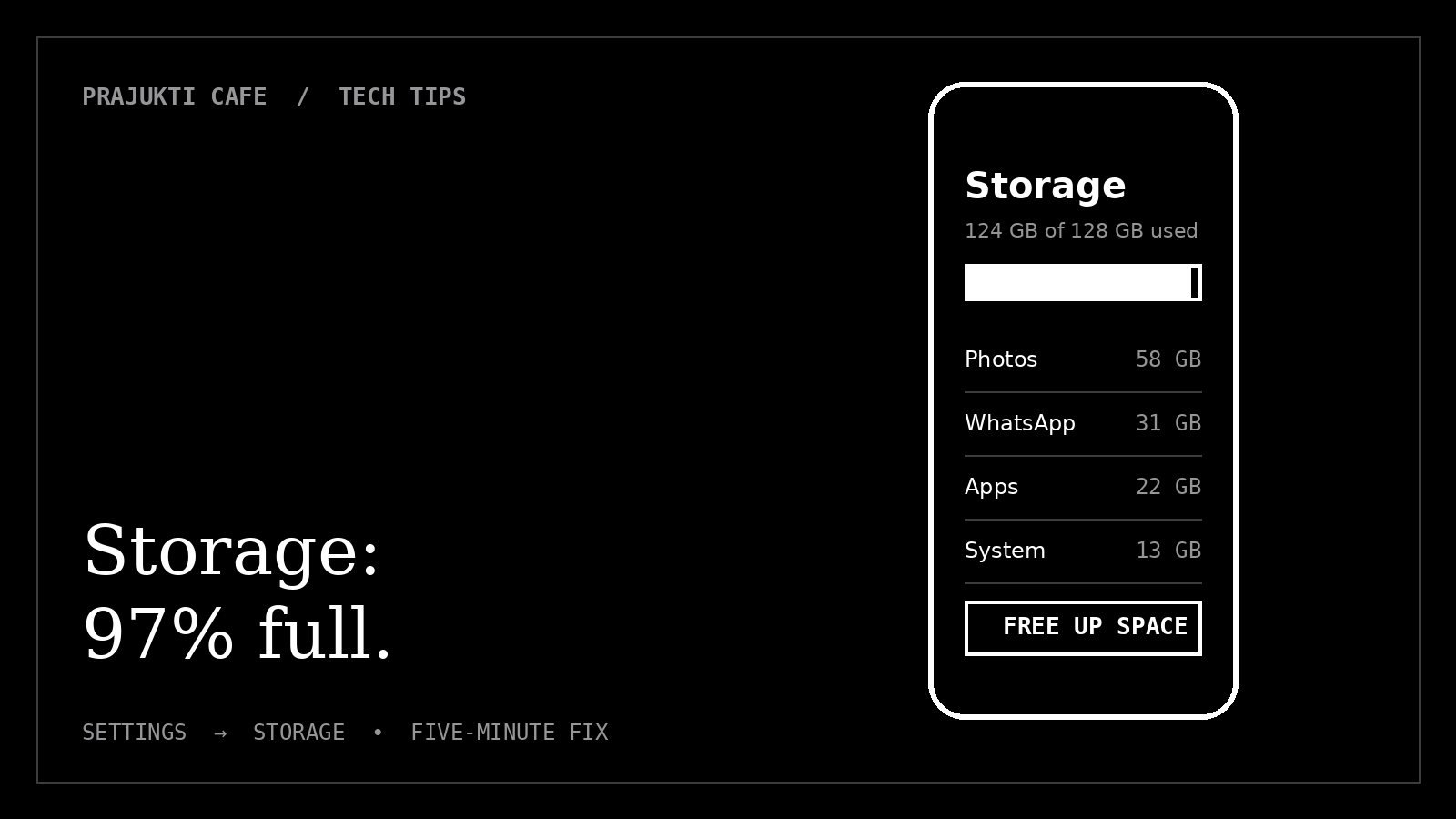
Before you spend ₹20,000 on a new phone, give me five minutes and one settings menu.
Most people blame a slow phone on age, or on the company “slowing it down”. Sometimes that’s partly true. But very often the real culprit is hiding in a screen most people never open: Storage.
The setting: Storage
Here’s where to find it. Menu names vary a little between brands and versions:
| Phone | Where to look |
|---|---|
| Most Android phones | Settings → Storage |
| Samsung | Settings → Battery and device care → Storage |
| iPhone | Settings → General → iPhone Storage |
Look at the bar at the top. If it’s nearly full, you’ve probably found your problem.
Why a full phone is a slow phone
Your phone isn’t just a box that holds photos. It constantly needs free working space:
- Apps write temporary files every time you use them.
- System and app updates need room to download and install.
- The storage chip itself works more efficiently when it has free space to manage its data.
When storage is almost full, everything has to squeeze in: apps open more slowly, the camera lags, the keyboard stutters and updates fail. A good rule of thumb is to keep at least 10–15% of your storage free.
A full phone isn’t old. It’s just out of breath.
The five-minute clean-up
Start with the biggest wins. These are the places where space usually hides:
| Where space hides | How to clear it |
|---|---|
| WhatsApp photos, videos and forwards | WhatsApp → Settings → Storage and data → Manage storage. Start with “Larger than 5 MB” and forwarded files. |
| Photos and videos already backed up | In Google Photos, use “Free up space” to remove device copies of backed-up items. Confirm your backup first. |
| Apps you never use | Uninstall them. iPhone can also “Offload Unused Apps” (keeps your data, removes the app). |
| Downloads folder | Open the Files app, sort by size and delete old PDFs, videos and installers. |
| Old voice notes and screen recordings | Easy to forget, often surprisingly large. |
Before deleting any photos or videos from your phone, open your backup app and check that they really are backed up. “Free up space” is safe only when the backup is complete.
Three more quick wins
1. Restart once a week
A restart clears memory, stops stuck background processes and often fixes mysterious slowness instantly. It costs thirty seconds.
2. Update everything
Install system updates and app updates. They often include performance fixes, and they’re essential for security.
3. Make animations faster
This one doesn’t free space, but it makes a phone feel quicker:
- Android: go to Settings → About phone, tap Build number seven times to unlock Developer options. Then, in Developer options, set Window animation scale, Transition animation scale and Animator duration scale to 0.5x. Change nothing else in that menu.
- iPhone: go to Settings → Accessibility → Motion and turn on Reduce Motion.
When it really is time for a new phone
If you’ve freed up space, updated everything and restarted, and the phone is still painfully slow, it may genuinely be time. Other signs:
- It no longer receives security updates from the manufacturer.
- The battery drains in a few hours even after you’ve cleaned things up.
- Apps you need say your phone or system version is no longer supported.
Until then, the best upgrade might be free. Open Storage today, and give your phone room to breathe.